November 18, 2026
How to Make a Domain Email That Actually Lands in Inboxes

The bakery has a logo, a wholesale list and a healthy Instagram habit, and it still quotes prices from a free Gmail address. So the owner buys a domain, signs up for Google Workspace, creates hello@ and sends a spring menu to forty buyers. Three weeks later two of them mention, gently, that nothing arrived. From her phone the address worked perfectly. That's because a message sent from the mailbox to the same mailbox never leaves the building.
The trap in how to make a domain email is that the two visible purchases, a domain and a mailbox, are the easy half. The half that decides whether strangers can reach you is a short list of DNS records, and nobody sells those in a checkout flow.
The five-minute version: a domain email is a domain, a mailbox subscription and a set of DNS records that route your mail and prove you're allowed to send it. Skip the records and you've bought a very official-looking dead end.
Table of Contents
- Your Domain Email Setup at a Glance
- How to Register Your Domain and Confirm It
- How to Point Mail to Your Provider
- How to Add SPF, DKIM and DMARC Records
- Fixing the Problems That Break Delivery
- Decide Whether Outreach Needs Its Own Domain
- Confirm the Setup Before You Send Your First Email
Your Domain Email Setup at a Glance
Every working domain email sits on three layers. The registered domain is the name itself, bought from a registrar and verified through the contact address you supply. The mailbox provider is where the inbox lives, whether that's Google Workspace, Microsoft 365 or a smaller host. The DNS records are the instructions that tell the rest of the internet where to deliver your mail and that messages claiming to be from you are genuine.
It's easy to finish layer two, declare victory, and spend a month wondering why replies dried up. The mailbox can send all day. Incoming mail is a separate routing problem solved somewhere else entirely.
Here's the whole job in five phases.
| Phase | What You Do | Where It Happens | You Are Done When |
|---|---|---|---|
| Register | Buy the domain and confirm the registrant email | Domain registrar | The verification email has been clicked |
| Host | Pick a mailbox provider and create your addresses | Provider admin console | A test mailbox can send and receive |
| Route | Point the MX records at the provider's mail servers | DNS host | MX lookups return the provider's servers |
| Authenticate | Publish SPF, DKIM and DMARC records | DNS host and provider settings | Test mail shows SPF, DKIM and DMARC passing |
| Verify | Send test messages to major inboxes and check the headers | Mail testing tools and your inbox | Messages land in the inbox, not spam |
The order carries weight because DNS changes crawl across the internet over hours, and you don't want an address in circulation while its records are still catching up. Route first, authenticate second, then hand the address to a customer.
The finish line: a message sent from a personal Gmail account lands in the new inbox rather than the spam folder, and its headers show SPF, DKIM and DMARC passing. Anything short of that isn't a finished setup, it's a mailbox with potential.
How to Register Your Domain and Confirm It
Start with the name, because this is the one decision you can't reverse later. Short, pronounceable, easy to spell over the phone, and matched to a .com or your local country extension if it's free. Misspellings live forever: people will type the wrong version for years, and every one of those messages goes somewhere that isn't you. Check the name aloud before you buy it.
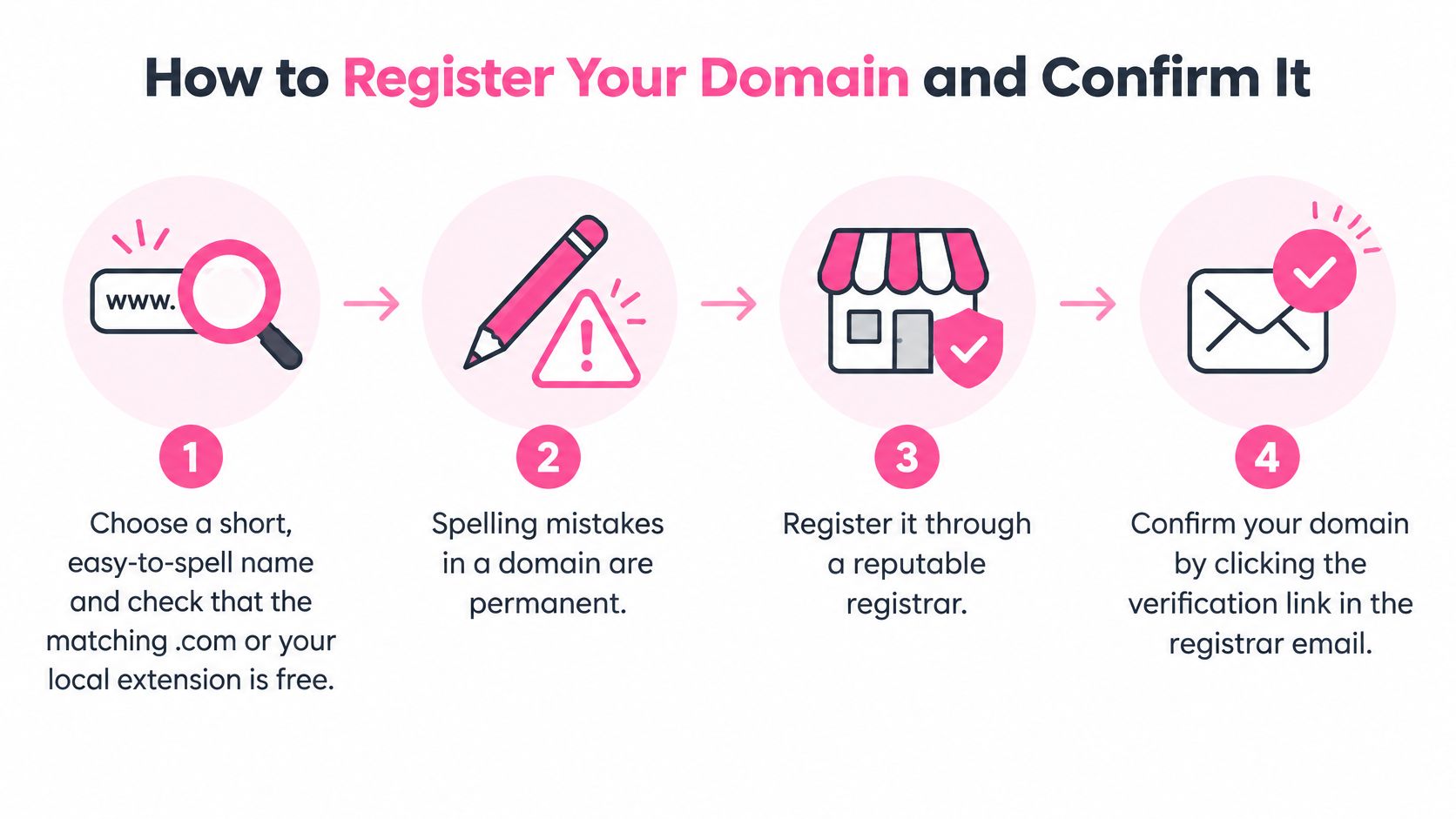
Register through a registrar you've heard of, and enter a contact address you will still control in five years. That's usually a role inbox on a domain you already own, something like admin@ or accounts@, not a personal address tied to an old job or a mailbox you check twice a year. Everything about the domain's future depends on someone reading mail at that address.
The verification step people skip
Registration isn't done when the payment clears. According to Google Domains documentation, the registrar has to validate the registrant's email address by sending a verification message, and leaving it unverified can keep the registration incomplete and affect the domain's status and the services attached to it.
So open that inbox the same day and click the link. The classic slip is verifying an address that forwards to a shared inbox nobody owns, or one that expires with a former employee. The verification goes wherever you typed, so type carefully and keep it current.
Then switch on auto-renew and the registrar lock. A lapsed domain doesn't just lose the website, it takes every mailbox on it down at the same moment, usually on a Friday.
Write down where DNS is managed, registrar or separate host, because every remaining step edits records in that one place. Before you move on, confirm the dashboard shows the domain as active and verified.
How to Point Mail to Your Provider
Routing is the step that turns a domain into a destination. Google Workspace, Microsoft 365 or a smaller host will each give you the exact server names and priority numbers to apply, and the console does the rest.
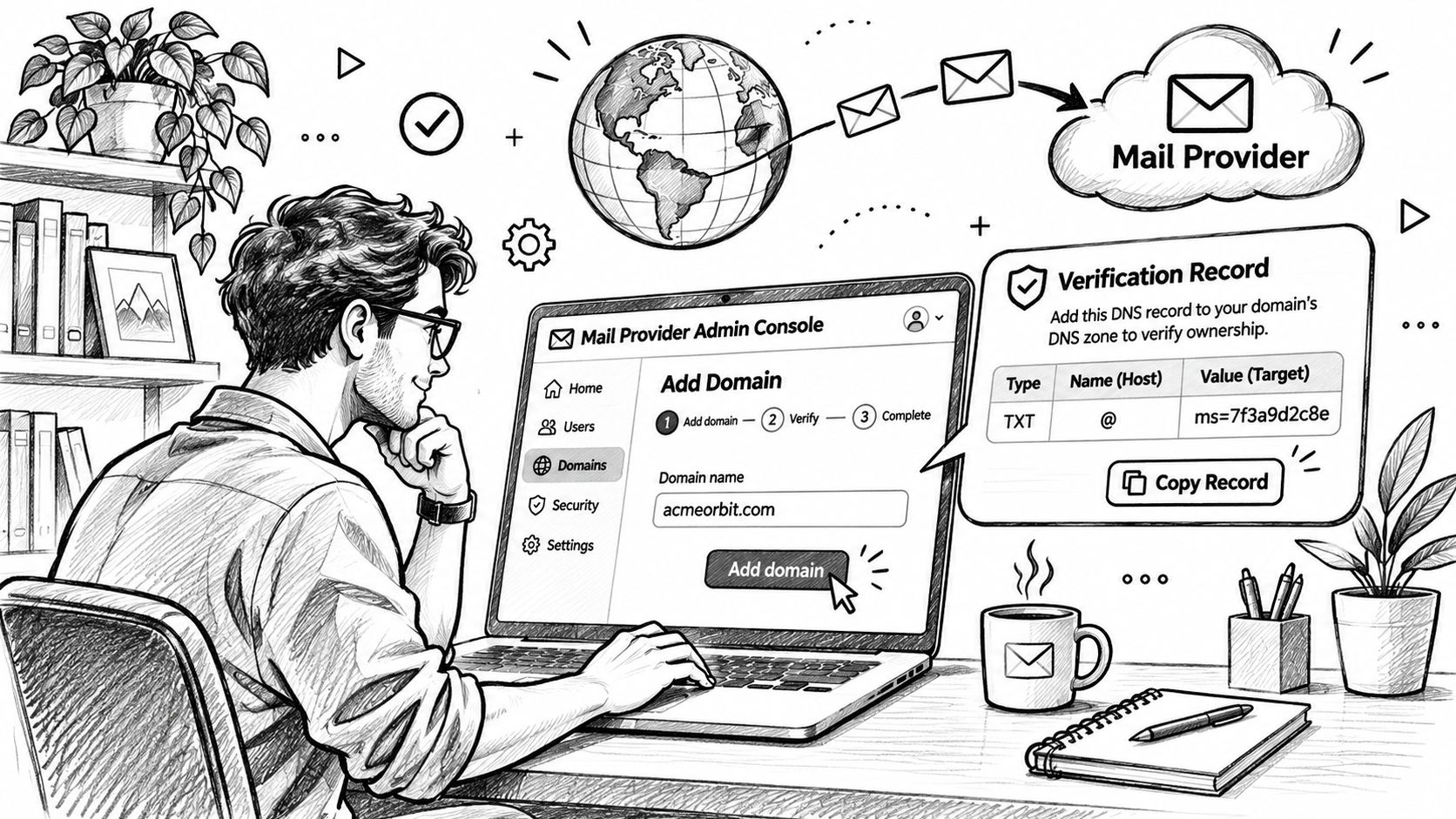
- Pick the provider and add your domain in its admin console. Start the trial now, since setup takes longer than the trial pitch suggests.
- Prove ownership. The provider gives you a verification record to add at your DNS host. Add it, save, and wait for the console to confirm before touching anything else.
- Create mailboxes and aliases. hello@ can route to a shared inbox two people read, which beats a single personal mailbox that goes on holiday with its owner.
- Replace the MX records with the provider's servers, using the priority numbers they supply.
- Delete the old MX records from any previous host. This is the one people forget.
The reason those priorities matter is written into the standards. RFC 5321, the SMTP specification published as an Internet standard in October 2008, requires a sending system to perform a DNS lookup to find where mail for a domain should be delivered, which in practice means reading the MX records. Lower preference numbers get tried first, so your primary server takes the lowest value and any backup takes a higher one.
The failure mode worth knowing: when MX records exist but none of them work, the standard requires delivery to be treated as an error. Mail doesn't quietly fall back and find you. It bounces, and the sender sees a failure they won't bother reporting to you.
Leftover records from an old host are worse than missing ones, because incoming mail gets split between two systems and some messages evaporate. Set a low TTL on the records before you change them, so a mistake can be rolled back in minutes rather than hours.
If the console screens look unfamiliar, UpTime Web Hosting's walkthrough on how to configure a business email address covers the click path alongside the DNS values your provider hands over.
Finish by sending a message from a personal account into the new mailbox. Not from the mailbox to itself.
How to Add SPF, DKIM and DMARC Records
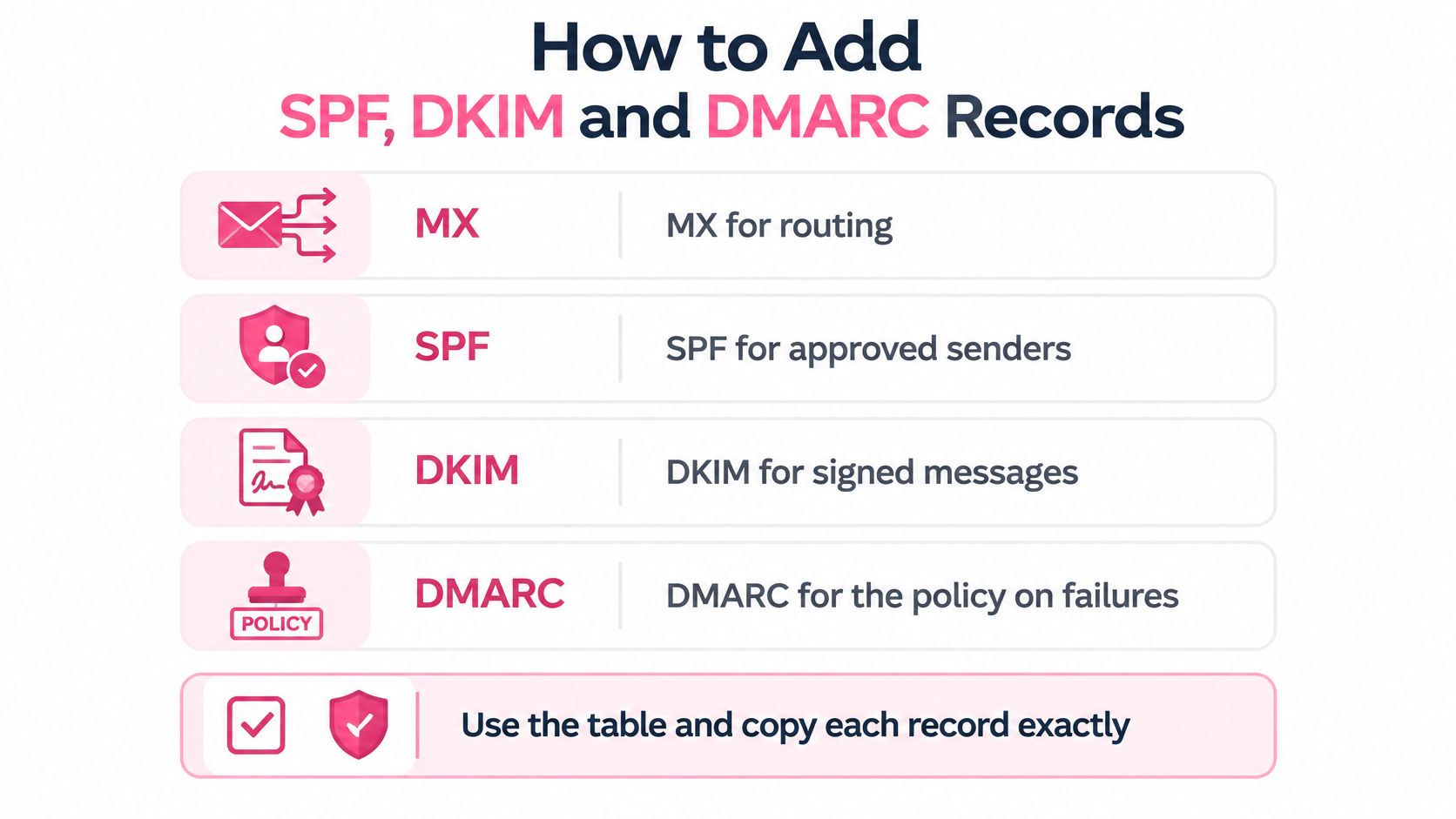
Routing gets mail in. Authentication keeps it out of spam and stops someone else sending as you. Four records cover the whole job.
| Record | What It Does | What It Looks Like | Required |
|---|---|---|---|
| MX | Routes incoming mail to your provider | Provider's mail server names with priority numbers | Yes |
| SPF (TXT) | Lists the services allowed to send for your domain | One record starting v=spf1 that includes your providers | Yes |
| DKIM (TXT) | Publishes the public key that verifies signed messages | Key published under the provider's selector name | Yes |
| DMARC (TXT) | Tells receivers what to do with failing mail and where to send reports | Record at _dmarc starting v=DMARC1 with a policy | Yes |
Publish in this order
Order matters because DMARC is the policy that reads the other two. Microsoft's email authentication guidance recommends configuring SPF and DKIM before enforcing DMARC, and the sequencing explains itself once you see what each record does.
SPF lists every service allowed to send for the domain, in a single record. One, not two. Two records make the policy invalid, and you'll get a permerror instead of a pass.
DKIM is a key pair. Your provider generates it, you publish the public half in DNS under the selector name the provider gives you, and you switch signing on. The common miss is enabling signing for the provider's default domain rather than your custom From domain, which signs nothing that matters.
DMARC tells receiving systems what to do with mail that fails both checks, and where to send reports. Then validate: send to Gmail, Outlook and an independent testing service, and expect SPF pass, DKIM pass and DMARC pass with at least one mechanism aligned to your From domain.
Google's rules for personal Gmail accounts apply from February 1, 2024, and per Google's bulk sender requirements the threshold sits at approximately 5,000 messages within a 24-hour period, above which SPF, DKIM and DMARC all become mandatory. Most small businesses never approach it. The reputation rules that decide your inbox placement don't wait for volume.
The video below walks through the same record set at a slower pace.
Stage the DMARC policy instead of flipping it
Publishing a DMARC record and securing a domain are different achievements. Industry tracking reported by DMARC Report shows adoption among the largest 1.8 million domains rising from 29.1% in 2023 to 47.7% in 2025, while more than half of adopters stayed on a monitoring-only policy that blocks nothing. A record that says "tell me about it" is paperwork, not protection.
So roll it out in stages, with a checkpoint at each one.
- Monitor. Publish with a monitoring policy and a reporting address. Checkpoint: aggregate reports arrive.
- Investigate. Read those reports for two to four weeks and add every legitimate sender you forgot, including the invoicing system nobody remembers buying. Checkpoint: every real sender shows an aligned pass.
- Quarantine. Move to quarantine and watch for a week or two. Checkpoint: no genuine mail shows up in the quarantine reports.
- Reject. Enforce. Checkpoint: nothing breaks for a month.
Checklist before enforcement: one SPF record, every vendor included, DKIM signing on the custom domain, a DMARC reporting address someone reads, and a test message passing all three. If your team handles sensitive data or grant funding, Nutmeg Technologies' email protection tips for nonprofits are a useful companion read, since the same controls that stop spoofing also stop invoice fraud.
Fixing the Problems That Break Delivery
Nobody breaks their own email in one afternoon. It happens over two years, as a newsletter tool, a help desk and an invoicing app each get added by a different person, and then one Tuesday the SPF record returns a permerror and half the outbound mail starts landing in spam.
SPF has a hard ceiling that catches almost everyone. Microsoft documents a limit of 10 DNS lookups, so stacked include statements from too many vendors push a record past the limit and the whole check fails, which reads to a receiver as "not authorized" rather than "slightly complicated". Consolidate vendors or follow your provider's recommended SPF layout instead of appending yet another service.
| Symptom | Likely Cause | Fix |
|---|---|---|
| Mail to the domain bounces or never arrives | MX records missing or still pointing at an old host | Re-add the provider's MX records and remove the old ones |
| Your mail lands in spam at Gmail or Outlook | DKIM not signing or SPF missing a sender | Enable DKIM in the provider, publish the key and recheck SPF |
| SPF shows a permerror | Two SPF records or more than 10 DNS lookups | Merge into one SPF record and drop unused includes |
| DMARC fails for one tool's messages | The tool sends from its own domain without alignment | Set up custom DKIM or return-path for that tool |
| Replies vanish after forwarding | Forwarding breaks SPF for the message | Rely on DKIM and route replies through an alias |
The DMARC row deserves a second look, because it's the one that looks like a mystery. A customer relationship tool sends on its own domain, your DMARC record checks alignment against your visible From domain, and the message fails even though the tool is legitimate. The fix is a setting inside the tool: custom DKIM or a custom return-path, so its mail carries your domain. Ask support for the exact record names, then add them to your inventory.
That inventory sheet is the habit that prevents all of this: every sender, its DKIM selector, its return-path domain and who owns it, updated whenever a tool is added. Twenty minutes twice a year beats a panicked afternoon.
The trap at the end: a passing authentication check proves a message is authorized and unaltered. It doesn't guarantee the inbox, which also depends on list quality, complaint rates and sending history. A company below the formal bulk threshold can still wreck its reputation with a bad list, sudden volume spikes or shared infrastructure, as EasyDMARC's provider requirements summary notes. Compliance never made unsolicited mail welcome.
Clean the list before blaming the server. Run it through a lead list cleaner and remove bounces and dead addresses, because no DNS change rescues a list full of strangers who never asked to hear from you.
Decide Whether Outreach Needs Its Own Domain
Here's the question most owners skip until it's expensive: should prospecting, newsletters, support and transactional mail all share the corporate domain?
Set the rules by volume and intent. If your domain carries staff mail, customer replies and invoices, keep it on the primary domain, follow the checklist, and don't complicate it. If you're running cold outreach at any real volume, give it a subdomain with its own sending identity, something like outreach.yourdomain.com, and keep the corporate domain clean. That's the short version of the decision.
The trade-off is real in both directions. Separation contains the damage when a campaign draws complaints, because a flagged subdomain doesn't take your invoices with it. It also adds records to maintain, authentication to monitor, reporting to read and a brand question about which address should appear in front of a prospect.
Where to draw the line: transactional mail, invoices and customer support belong on the domain your brand answers to. Prospecting benefits from distance, because its reputation curve is the one most likely to wobble.
Volume advice starts with a number, so work out what you send. Our free outbound volume planner maps your monthly targets onto domains and mailbox counts before you buy anything.
If you'd rather not run the plumbing yourself, Ever Outbound handles domain setup, warmup and deliverability monitoring across sending mailboxes. We're pay-per-close, so you pay only when a deal closes.
Confirm the Setup Before You Send Your First Email
Before the first real announcement goes out, run the go or no-go test. Every line has to pass.
- Routing. MX lookups return your provider's servers and nothing else.
- Identity. Every sending system has valid forward and reverse DNS, including a PTR record for its sending infrastructure. Google's sender requirements apply to all senders delivering to Gmail accounts, not just large ones, and valid forward and reverse DNS is part of the baseline.
- Authentication. Test headers show SPF or DKIM passing and aligned with the From domain, and DMARC passing. Google's guidance defines alignment as the authenticated domain matching the domain in the visible From address, and a DMARC check passes when at least one aligned method succeeds.
- Placement. A test message reaches a real inbox at Gmail, Outlook and an independent testing service, not the spam folder.
Send one message through a free email deliverability checker as a second opinion before you send the campaign version to three hundred people.
If a line fails, go back to that phase instead of sending anyway. A passing checklist means the domain is ready for normal business mail, and the reports will still surface legitimate senders you forgot. Add them to the inventory before you tighten the policy.
Then do the one thing that matters this week: send a test message from a personal account to the new mailbox, and put the DMARC reports in a shared inbox with a yearly review on the calendar.
Ever Outbound Inc. builds the sending side of this properly: domains and mailboxes set up and warmed before a campaign touches them, and short, specific copy written and sent on warmed domains so emails land in the inbox rather than the promotions tab. We're pay-per-close, so our revenue depends on deals you close. When you're ready to stop tuning records and start booking calls, come see how the whole service works at Ever Outbound Inc.